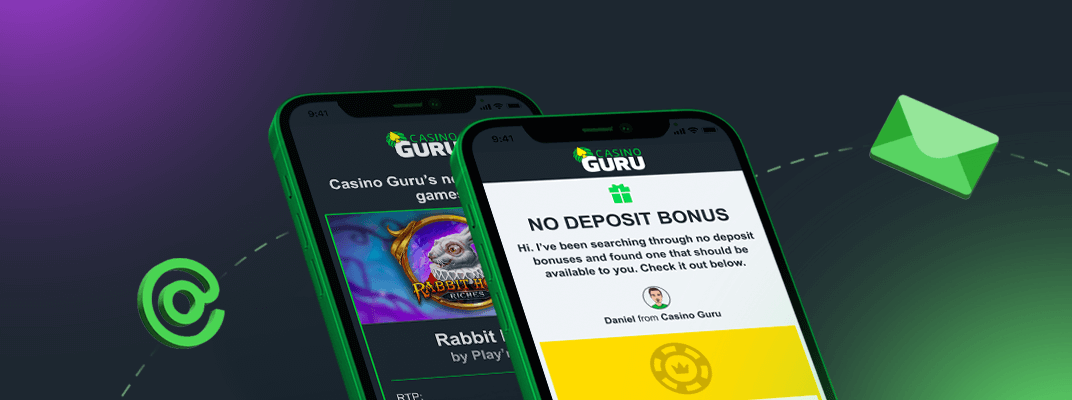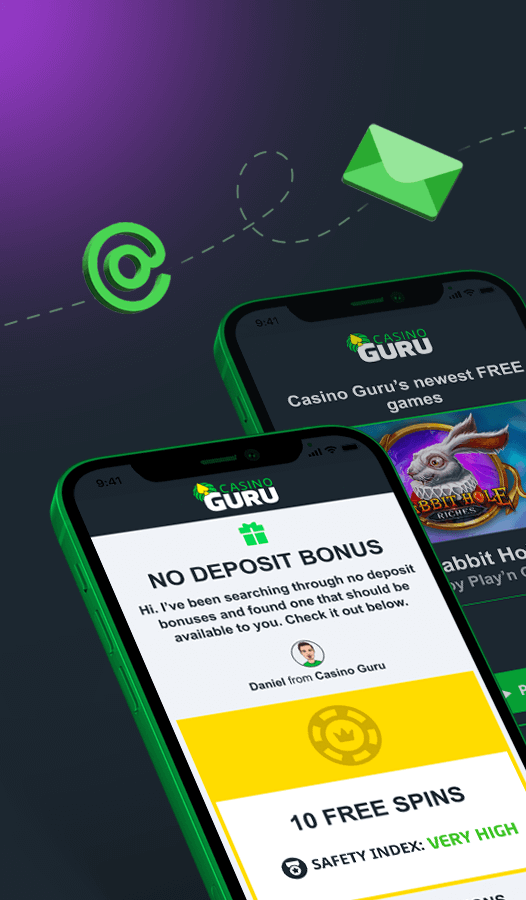

Il giocatore dalla Polonia aveva utilizzato un bonus dal casinò dopo aver ricevuto un'e-mail che lo promuoveva, aveva completato i requisiti di scommessa e richiesto un prelievo. Tuttavia, ha ricevuto un'e-mail in cui si affermava che aveva violato i termini utilizzando il bonus, il che ha creato confusione. Il Complaints Team ha esaminato la questione e si è schierato dalla parte del giocatore, affermando che la confisca delle vincite da parte del casinò era ingiusta e non in linea con le pratiche standard del settore. Nonostante la raccomandazione al casinò di ripristinare le vincite del giocatore, il reclamo è stato infine archiviato come irrisolto a causa della mancanza di risposta da parte del casinò.
MilkyWay Casino - Il giocatore riscontra un problema di prelievo a causa dei termini del bonus.
Non risolto
Il nostro verdetto
Non conforme al gioco d'azzardo onesto
Punti di penalità: 126
Importo:: 1.000 zł

MilkyWay Casino
Indice di sicurezza 6.3 Inferiore alla mediaRiepilogo del caso
Traduzione

Discussione
Pubblico



Pubblico
1 anno fa
Traduzione
Ieri, 1/10 Ho ricevuto un'e-mail dal casinò che mi incoraggiava a usare il bonus al momento del deposito (menzionano 3 bonus - screenshot allegati). Ne ho usato uno, ho scommesso l'importo richiesto e ho richiesto il prelievo. Oggi ho ricevuto un'e-mail in cui mi si diceva che ho violato i termini usando il bonus (allegato). Non è che sto deliberatamente creando confusione con l'utente? Grazie
Pubblico


Pubblico
1 anno fa
Traduzione
Caro holdencau,
Grazie mille per aver presentato il tuo reclamo. Mi dispiace per il tuo problema. Permettimi di farti qualche domanda, così da poter comprendere appieno l'intera situazione.
Potresti condividere la cronologia dei tuoi bonus?
Potresti condividere la cronologia dei tuoi depositi?
Potresti condividere la tua comunicazione con il casinò? Invia e-mail o trascrizioni di chat al mio indirizzo e-mail [email protected] oppure pubblica gli screenshot qui.
Spero che saremo in grado di aiutarti a risolvere questo problema il prima possibile. Grazie mille in anticipo per la tua risposta.
Distinti saluti,
Domenica
Pubblico
Pubblico
1 anno fa
Traduzione
Ciao,
Puoi consultare la cronologia dei miei bonus/depositi: non ho più accesso al mio account.
Ho ricevuto un'e-mail da te il 10/01/2025 per usare fino al 270% di bonus. Il giorno dopo ne ho usato uno, ho scommesso l'importo richiesto e ho richiesto il prelievo. Poche ore dopo ho ricevuto un'e-mail da te che dicevi che avevo violato i termini usando troppo il bonus che mi avevi incoraggiato a prendere. Tutte le prove sono allegate. 


Pubblico
Pubblico
1 anno fa
Traduzione
Grazie mille, holdencau, per aver fornito le informazioni necessarie. Ora trasferirò il tuo reclamo al mio collega Branislav ( [email protected] ) che sarà al vostro servizio. Vi auguro la migliore fortuna e spero che il problema venga risolto in modo soddisfacente nel prossimo futuro.
Pubblico

Pubblico
1 anno fa
Traduzione
Ciao, holdencau,
Mi dispiace sentire della tua spiacevole esperienza. Contatterò il casinò e farò del mio meglio per risolvere il problema il prima possibile. Ora vorrei invitare il rappresentante del casinò a unirsi a questa conversazione e a partecipare alla risoluzione di questo reclamo.
Gentile team del MilkyWay Casino ,
Potresti spiegare la situazione del giocatore in modo più dettagliato? Perché le vincite dell'utente sono state confiscate?
Se si tratta di una violazione dei Termini e Condizioni del casinò, il casinò è in grado di corroborare le sue affermazioni e la sua decisione con prove pertinenti?
Sentiti libero di inviare i dettagli necessari e le prove a supporto al mio indirizzo email ( [email protected] ).
Grazie.
Pubblico
Pubblico
1 anno fa
Traduzione
Vorremmo chiedere al casinò di rispondere a questo reclamo. Stiamo estendendo il timer di 7 giorni. Se il casinò non risponde entro il termine stabilito, chiuderemo il reclamo come "irrisolto", il che potrebbe influire negativamente sulla sua valutazione.
Pubblico

Pubblico
1 anno fa
Traduzione
CIAO,
Vi preghiamo di contattarci via Skype così da potervi fornire ulteriori informazioni in merito a questo problema.
Grazie
Pubblico
Pubblico
1 anno fa
Traduzione
Saluti a tutti,
Solo per informarti dell'aggiornamento, holdencau - sono già in contatto con il rappresentante del casinò fuori dal thread, dove stiamo discutendo della questione.
Non appena avrò notizie, dopo aver considerato la situazione e le circostanze con tutti i dettagli necessari, vi informerò qui. Per ora, lascerò il timer su di me e cercherò di tornare indietro finché non scade.
Grazie per la pazienza e la comprensione.
Pubblico
Pubblico
1 anno fa
Traduzione
Caro holdencau ,
C'è ancora una comunicazione in corso tra me e il rappresentante del casinò al di fuori del thread. Tuttavia, c'è una cosa per cui penso sarebbe meglio che tu potessi aiutare me piuttosto che il casinò.
Potresti trovare l'email originale con l'offerta bonus in questione (in precedenza hai condiviso alcuni screenshot) e, se possibile, inoltrarla alla mia email come comunicazione email/file allegato a una nuova email?
Sentiti libero di usare la mia email ( [email protected] ).
Se non hai esperienza in merito, ti fornisco un semplice manuale tratto da Internet su come farlo...
Poiché probabilmente stai utilizzando un browser sul tuo telefono con la posta in arrivo, la procedura per salvare/inoltrare un'e-mail come allegato potrebbe variare leggermente a seconda dell'aspetto e delle funzionalità specifiche di questa interfaccia, ma solitamente funziona così:
1 - Apertura dell'email: apri l'email che desideri salvare/inoltrare.
2 - Alla ricerca di opzioni:
- Opzione 1 (salvataggio come file): Cerca l'icona con i tre puntini (···) o un menu (a volte etichettato come "Altro"). Dopo aver cliccato, dovresti trovare un'opzione come "Salva come file", "Scarica" o qualcosa di simile. Se la trovi, seleziona questa opzione e l'email verrà salvata come file (solitamente .eml).
- Opzione 2 (inoltro come allegato): prova a cercare direttamente l'opzione "Inoltra come allegato". Alcune interfacce webmail la dispongono direttamente nel menu "Inoltra".
3 - Se non riesci a salvare/inoltrare direttamente come allegato: Se non vedi direttamente l'opzione "Salva come file" o "Inoltra come allegato", prova a vedere se l'e-mail può essere stampata (opzione "Stampa" o icona della stampante). Se l'e-mail si apre in modalità di stampa, alcuni browser ti consentono di salvare questa pagina come file PDF. Puoi quindi allegare questo PDF all'e-mail.
4 - Creazione di una nuova e-mail e allegamento del file: se hai salvato correttamente l'e-mail come file (sia esso .eml o PDF), crea una nuova e-mail e allega questo file come allegato.
Importante:
Le interfacce Webmail sui dispositivi mobili possono a volte essere meno intuitive delle versioni desktop. Pertanto, se non è possibile farlo tramite telefono, utilizzare un PC e uno dei browser Internet più comuni per procedere.
Per favore, fammi sapere se hai avuto successo o se non riesci in alcun modo a soddisfare la mia richiesta.
Grazie. Non vedo l'ora di sentirti.
Pubblico
Pubblico
1 anno fa
Traduzione
Ciao Branislav,
Ho appena inviato un'e-mail.
Grazie per il tuo aiuto!
Pubblico
Pubblico
1 anno fa
Traduzione
Saluti a tutti,
Grazie per la tua email, holdencau , e mi scuso per il ritardo.
Solo per fornirti un aggiornamento: sulla base di tutte le informazioni e dei dettagli raccolti da entrambe le parti coinvolte, abbiamo deciso di schierarci dalla parte del giocatore.
Gentile team del MilkyWay Casino ,
Poiché la situazione è stata spiegata in modo più dettagliato al di fuori del thread, stiamo aspettando la tua decisione finale in merito alla questione. Come accennato, nelle circostanze date, seguendo il nostro Fair Gambling Codex e la politica interna, raccomandiamo al casinò di ripristinare le vincite del giocatore per intero e di assicurarsi che una situazione del genere non si verifichi in futuro.
Grazie. Non vedo l'ora di sapere la tua decisione finale.
Pubblico
Pubblico
1 anno fa
Traduzione
Vorremmo chiedere al casinò di rispondere a questo reclamo. Stiamo estendendo il timer di 7 giorni. Se il casinò non risponde entro il termine stabilito, chiuderemo il reclamo come "irrisolto", il che potrebbe influire negativamente sulla sua valutazione.
Pubblico
Pubblico
1 anno fa
Traduzione
Caro holdencau ,
Purtroppo, poiché non abbiamo ricevuto alcuna ulteriore risposta dal casinò in merito al problema, anche dopo aver inviato loro un promemoria una settimana fa, non possiamo continuare a risolvere questo reclamo e siamo costretti a chiuderlo come "irrisolto", il che influenzerà negativamente la valutazione del casinò.
Non siamo d'accordo con la confisca delle vincite basata sulla regola applicata, che consideriamo ingiusta/scorrettamente utilizzata contro i giocatori. Poiché è una regola non standard nel settore e di solito teniamo conto che i giocatori non leggono completamente le regole dei casinò, il casinò non può incolpare solo i giocatori per averla violata se non sono sufficientemente/ulteriormente informati su tale regola. Inoltre, se il casinò desidera avere una regola del genere e applicarla alle vincite dei giocatori, raccomandiamo vivamente al casinò di risolvere la questione dalla sua parte, non fornendo tali bonus ai giocatori che non ne hanno diritto se richiede depositi di denaro reale (il casinò sa che ciò comporterà la confisca delle vincite ma accetta i depositi persi nel caso in cui i giocatori li perdano?) e/o applicarla dalla sua parte per impedire ai giocatori di cadere in una trappola come questa.
C'è un'altra opzione per provare a risolvere il tuo problema o accelerare il processo, holdencau: puoi contattare l'autorità di gioco da cui è regolamentato il casinò (GCB) e inviare un reclamo direttamente all'ente regolatore. Sebbene al momento non gestiscano le controversie individuali tra giocatori e operatori di gioco, potrebbero esaminare la situazione in merito a potenziali violazioni della legge. Sentiti libero di trovare maggiori informazioni QUI o il nostro articolo sui processi di reclamo degli enti regolatori in generale QUI .
Per qualsiasi domanda o novità non esitate a contattarmi a [email protected] .
Vorrei poterti essere di maggiore aiuto. Spero sinceramente che non ti imbatterai più in un problema come questo.
Una volta che il casinò cambia approccio e decide di riconsiderare la sua decisione iniziale, può riaprire il reclamo in qualsiasi momento.
Distinti saluti,
Branislav, Casino.Guru